
Understanding Google AI Overviews and the Drive for Control

Google's integration of AI Overviews directly into search results marks a significant shift in how information is presented. Google's integration of AI Overviews directly into search results marks a significant shift in how information is presented. These AI-generated summaries, often appearing at the top of the search page, aim to provide quick answers without requiring users to click through multiple links. While potentially convenient for some queries, they frequently displace organic search results, obscure traditional snippets, and can sometimes provide inaccurate or overly generalized information. Many users find this disruptive, preferring direct access to source websites, a cleaner interface, and the ability to critically evaluate information from diverse sources themselves. This desire for agency over search results drives the demand for tools and techniques to effectively hide or bypass these AI intrusions, allowing for a more focused and intentional browsing experience.
Browser Extensions: The Direct Approach to Blocking AI
Browser extensions offer the most straightforward path to hiding Google AI Overviews. Browser extensions offer the most straightforward path to hiding Google AI Overviews. These tools, available for Chrome, Firefox, Edge, and other Chromium-based browsers, typically work by identifying and suppressing the specific HTML elements that render the AI Overview on Google's search results pages. Installation usually involves a few clicks from the browser's respective web store, and configuration is often minimal, sometimes just a toggle switch. Popular examples include 'Hide Google AI Overview' or 'AI-Off' type extensions, which are frequently updated to adapt to changes in Google's interface. This method is ideal for users seeking an immediate, hassle-free solution without delving into browser settings or URL parameters. It requires trusting the extension developer but delivers consistent results for most standard search queries. For instance, an extension might also remove related AI-driven recommendations or 'People Also Ask' sections, further decluttering the page.
Key Features of Effective AI Blocking Extensions
Key Features of Effective AI Blocking Extensions.
- Real-time Detection: Quickly identifies and blocks AI Overviews as the page loads.
- Configurable Settings: Allows users to choose what specific AI elements to hide (e.g., just the overview, or also 'People Also Ask').
- Browser Compatibility: Works across major browsers like Chrome, Edge, and Firefox.
- Low Resource Usage: Designed to run efficiently without slowing down browsing.
- Regular Updates: Adapts to Google's continuous UI changes to maintain functionality.
Configuring Custom Search Engines for Parameter-Based Control
For users who prefer not to install browser extensions or desire a more universal solution across different browsers and devices (when synced), modifying your default search engine settings offers a robust alternative. For users who prefer not to install browser extensions or desire a more universal solution across different browsers and devices (when synced), modifying your default search engine settings offers a robust alternative. This method leverages specific URL parameters that Google sometimes recognizes to alter search result presentation. The most common parameter is &udm=14, which has been observed to suppress AI Overviews for many users. By embedding this parameter directly into your browser's custom search engine URL, every search you perform through that engine will automatically include it, effectively filtering out the AI summary before it even loads. This approach provides a high degree of control, works without third-party software, and can be easily applied to any browser that supports custom search engine configuration.
Setting Up a Custom Google Search Engine with AI Filtering
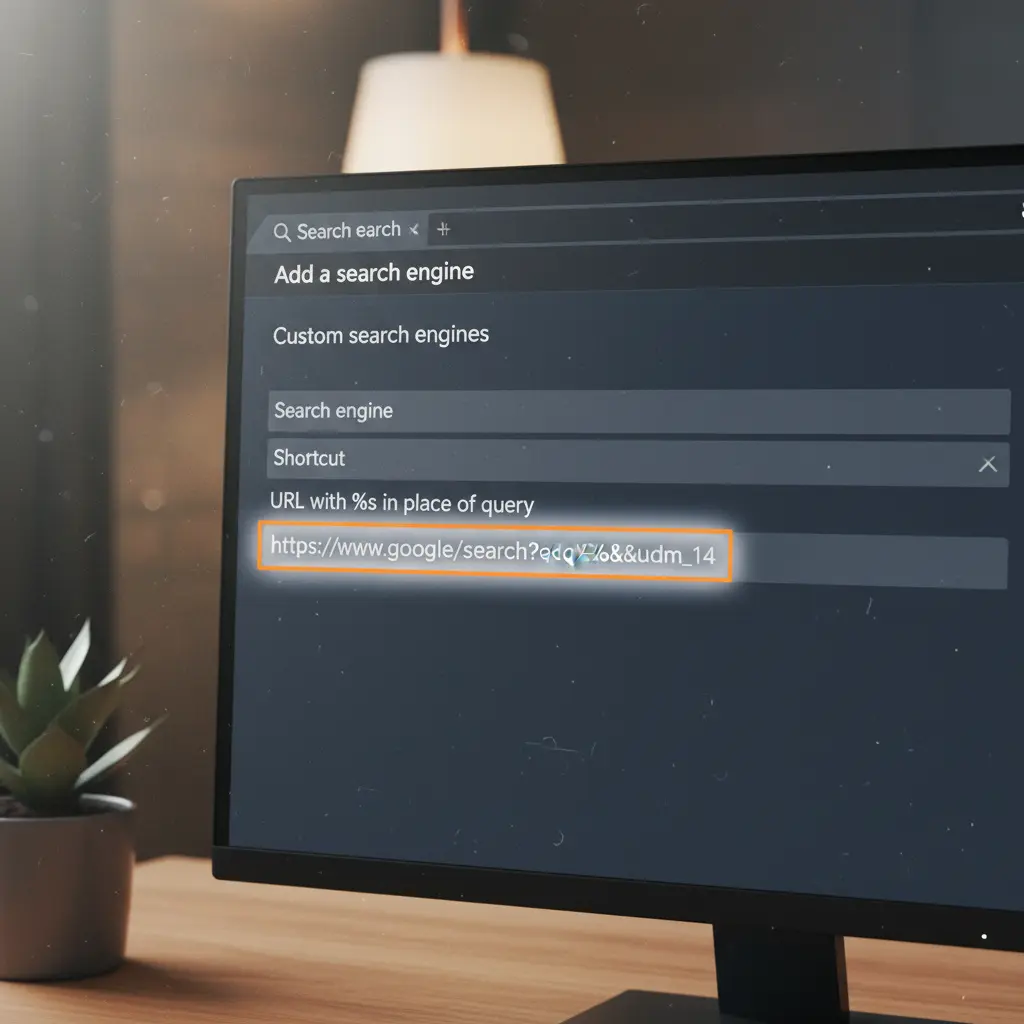
Here's how to configure your browser to automatically filter AI Overviews using a URL parameter: Here's how to configure your browser to automatically filter AI Overviews using a URL parameter:
- Access Browser Settings: Navigate to your browser's settings menu. Look for sections related to 'Search Engine' or 'Manage Search Engines'.
- Add a New Search Engine: Find the option to 'Add' a new search engine or 'Manage search engines'.
- Enter Details:
- Search engine name: Give it a descriptive name, like 'Google (No AI)'.
- Keyword/Shortcut: (Optional) Assign a keyword like 'g' to quickly use it from the address bar.
- URL with
%sin place of query: For Google, usehttps://www.google.com/search?q=%s&udm=14. The%sis a placeholder for your search query.
- Set as Default: After adding, set your newly created 'Google (No AI)' as your default search engine.
- Test: Perform a few searches to confirm the AI Overviews are no longer appearing.
This setup works across various browsers, including Chrome, Firefox, and Edge, by modifying their search engine management options. For a comprehensive guide on decluttering your search experience, you may want to explore other AI clutter solutions.
Choosing Your Method: Extensions vs. Custom Search Parameters
Deciding between a browser extension and a custom search engine configuration depends on your technical comfort, privacy preferences, and desired level of control. Deciding between a browser extension and a custom search engine configuration depends on your technical comfort, privacy preferences, and desired level of control. Extensions offer immediate gratification and often block more than just the AI Overview, sometimes including other clutter like shopping recommendations or 'People Also Ask' sections. However, they require trusting a third-party developer and can sometimes introduce minor performance overhead. Custom search parameters, conversely, are entirely controlled by the user, involve no third-party code, and are generally more stable against Google's UI changes, as they rely on a backend signal. This method, however, typically only targets the AI Overview itself and requires a small initial setup effort. Your choice often reflects a tradeoff between convenience and autonomy, or between a comprehensive cleanup and a surgical strike on specific AI elements.
| Feature | Browser Extension | Custom Search Parameter | What to Avoid |
|---|---|---|---|
| Ease of Setup | Very High (few clicks) | Medium (manual URL config) | Overly complex extensions or unsafe parameter usage. |
| Customization Depth | High (often block multiple AI elements) | Low (primarily targets AI Overview) | Choosing an option that doesn't meet specific blocking needs. |
| Browser Compatibility | Good (major browsers with stores) | Excellent (any browser supporting custom search URLs) | Expecting an extension to work on all obscure browsers. |
| Maintenance | Low (auto-updates usually) | Medium (manual adjustment if Google changes parameter) | Ignoring updates, leading to broken functionality. |
| Privacy Considerations | Requires trust in extension developer, permissions. | Minimal (browser native feature) | Installing extensions with excessive permissions. |
| Performance Impact | Potentially minor (running in background) | Negligible (URL modification) | Extensions that consume significant system resources. |
| Target Scope | AI Overview, sometimes related AI/clutter. | Primarily AI Overview. | Solutions that remove too much or too little. |
| Portability | Limited (re-install per browser/device) | High (sync custom search engine across devices) | Solutions tied to a single browser profile. |
Practical Scenarios for Hiding AI Overviews
Applying the right strategy to hide Google AI Overviews depends heavily on your specific browsing habits and technical comfort. Applying the right strategy to hide Google AI Overviews depends heavily on your specific browsing habits and technical comfort. Here are several common situations and recommended approaches:
Scenario 1: The Everyday User Seeking a Quick Fix
User Situation: You use Chrome daily, are annoyed by the AI Overviews, and want the quickest, easiest way to remove them without technical fuss.
Recommended Option: Install a reputable browser extension like 'AI-Off' or 'Hide Google AI Overview' from the Chrome Web Store. It's typically a one-click installation and starts working immediately.
Alternative Option: Consider setting up a custom search engine if you prefer not to install extensions, though it involves a few more steps.
What to Avoid: Installing obscure extensions from untrusted sources, which might compromise privacy or introduce other issues. Don't waste time trying complex manual hacks.
Scenario 2: The Privacy-Conscious Browser
User Situation: You prioritize data privacy, minimize third-party extensions, and prefer solutions that leverage native browser features.
Recommended Option: Configure a custom search engine in your browser settings, embedding the &udm=14 parameter into the Google search URL. This avoids installing any third-party code.
Alternative Option: If you use a privacy-focused browser like Brave, explore its built-in content filtering options or consider a very well-vetted, open-source extension.
What to Avoid: Installing extensions with broad permissions that can read your browsing history or access data on all websites.
Scenario 3: The Multi-Browser Professional
User Situation: You switch between Chrome, Edge, and Firefox for different tasks and need a consistent experience across all platforms, ideally without reinstalling extensions everywhere.
Recommended Option: Set up the custom search engine with the &udm=14 parameter as your default in each browser. This provides a unified solution.
Alternative Option: If you use a browser profile sync feature, setting up the custom search engine once might sync it across devices. Alternatively, install a trusted extension across all browsers.
What to Avoid: Relying on browser-specific experimental flags, which can be inconsistent or temporary across different browser versions.
Scenario 4: The Researcher Needing Clean Results
User Situation: You frequently conduct in-depth research, requiring direct links to academic papers, technical documentation, or specific news articles without AI summaries influencing your initial perception.
Recommended Option: Use the custom search engine method with &udm=14. This ensures every query starts with an unfiltered result set, making it easier to scan for authoritative sources. Additionally, learn to use Google's advanced search operators for precision.
Alternative Option: A dedicated browser profile with a blocking extension active, used exclusively for research.
What to Avoid: Allowing AI Overviews to pre-summarize complex topics, potentially missing nuances critical to your research.
Scenario 5: The Casual User with Specific Browser Needs
User Situation: You primarily use Microsoft Edge and occasionally want to hide AI Overviews, but you're not deeply technical.
Recommended Option: Look for specific Edge browser settings related to Copilot or AI integration in search. Edge sometimes offers built-in toggles. Failing that, a simple browser extension is the next best step.
Alternative Option: The custom search engine approach is still viable for Edge if no native toggles are found or desired.
What to Avoid: Trying to modify deep system files or registry entries; stick to user-facing settings or extensions.
Scenario 6: The User Experimenting with Digital Well-being
User Situation: Beyond just AI Overviews, you're trying to reduce overall digital clutter, improve focus, and consciously control your browsing environment for better well-being.
Recommended Option: Combine the custom search engine method for AI Overviews with other tools like ad blockers and focus-oriented extensions. This creates a highly customized and controlled browsing space. Consider exploring focus extensions.
Alternative Option: Utilize browser features like Reading Mode or Reader View, which strip away non-essential elements from webpages, complementing a clean search experience.
What to Avoid: Only addressing one type of digital clutter; a holistic approach yields better results for overall digital well-being.
Maintaining Your Preferences and Adapting to Future Changes
Google frequently updates its search interface and algorithms, which means any method for hiding AI Overviews might require occasional adjustments. Google frequently updates its search interface and algorithms, which means any method for hiding AI Overviews might require occasional adjustments. If you rely on a browser extension, ensure it's set to auto-update. Reputable extension developers typically adapt quickly to Google's changes, issuing updates that restore functionality. For those using the custom search engine parameter method, it's possible Google might change or deprecate &udm=14 or similar parameters in the future. In such cases, you might need to research new effective parameters or switch to an extension. Regularly testing your preferred solution with new searches helps ensure it remains effective. Staying informed about browser and search engine updates through technology news outlets or dedicated community forums can provide early warnings about potential disruptions to your clean search experience.
Reclaiming Focus: Beyond Just Hiding AI Overviews
Hiding Google AI Overviews is often one step in a broader effort to regain control over your digital environment and reduce information overload. Hiding Google AI Overviews is often one step in a broader effort to regain control over your digital environment and reduce information overload. The principles of intentional browsing-prioritizing direct information sources, minimizing distractions, and actively choosing what content you consume-extend beyond just search results. This involves critically evaluating the utility of AI-driven recommendations in other contexts, such as video platforms or social media feeds. Many users seek to create a less cluttered, more productive online space, where they dictate the terms of information delivery, rather than passively accepting algorithmically generated content. By taking active steps to manage AI overviews, you're not just removing a feature; you're asserting agency over your attention and refining your interaction with the web, paving the way for a calmer, more controlled digital experience. This journey often involves exploring tools and strategies for browser control and managing AI search alternatives.